Paper Snowflake Undo Cut: Fix Mistakes and Save Snips
Learn Paper Snowflake undo cut controls: remove misplaced points, recover snips and punches, and know when unfolding ends your chance to fix a mistake.
Jump to
How to Undo a Cut in Paper Snowflake
The Paper Snowflake undo cut command is Z on a keyboard or the Undo button on screen. It removes your latest unfinished point first; with no shape in progress, it reverses the latest completed cut or punch and restores that tool’s use. Undo stops working once you unfold.
What happens depends on whether you’re still drawing:
| Current state | What Z or Undo does |
|---|---|
| An unfinished outline has points | Removes the most recently placed point |
| No unfinished outline; latest action was a completed cut | Restores the removed paper and returns one snip |
| No unfinished outline; latest action was a hole punch | Removes that hole and returns one punch |
| The snowflake has been unfolded | Editing has ended; Undo is unavailable |
Completed cuts and punches are reversed in order, starting with the latest. You cannot select an older cut directly.
Official page: Paper Snowflake (yuki1019.itch.io)
Fix One Point or Cancel the Whole Outline
If your outline takes a wrong turn, press Z once to remove its last point, then click the corrected position. Repeat Undo to work backward through additional misplaced points.
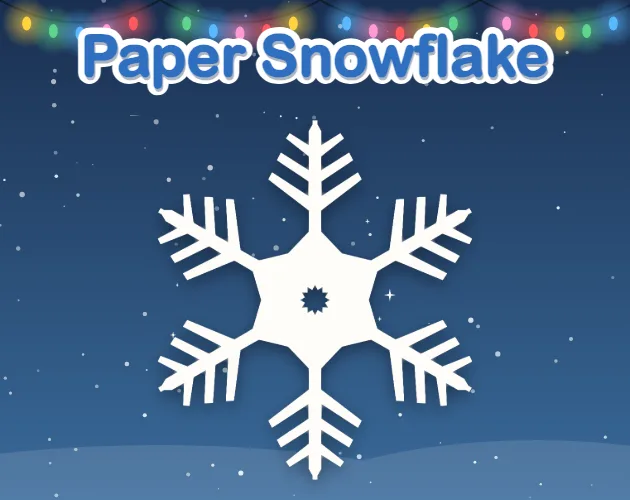 Image: yuki1019.itch.io
An unfinished outline takes priority over completed cuts. For example, if you finish a cut and then place two points for another shape, the next two Undo presses remove those points. The following press reverses the completed cut and refunds its snip.
To discard the entire unfinished shape immediately:
- Mouse: Right-click the canvas.
- Keyboard: Press Esc.
- Touch: Tap Undo repeatedly until the outline is cleared.
Canceling an unfinished outline leaves completed cuts in place. It also needs no snip refund, because a snip is spent only when the shape is completed.
To finish a replacement cut, place at least three points, then click or tap the first point. Keyboard players can also press Enter. Switching Punch mode on or off clears an unfinished outline, so finish or cancel it before changing tools.
Recover Your Limited Snips and Punches
Each puzzle level starts with one more snip than the target pattern uses. Levels with circular punch holes also provide one extra punch beyond the target’s requirement.
Undo lets you reclaim those uses. If you run out of snips, reverse a completed cut to get one back, then redraw it. If you run out of punches, reverse the latest punch to recover that use.
Remember that both tools share the same completed-action history. If you make a polygon cut after punching a hole, Undo reverses that polygon before it can reach the hole.
Before replacing a cut, compare its position with the target card’s highlighted wedge and matching guide lines. Pay attention to fold edges: a cut across the right fold opens into a diamond, while an interior cut repeats around the unfolded snowflake.
Keep an eye on the timer while correcting mistakes. The countdown starts with your first point or punch, and Undo neither pauses it nor restores time.
Check Your Outline Before You Unfold
Pressing Space or selecting Unfold starts the reveal and ends editing. In puzzle levels, it also checks your snowflake against the target.
Unfold can finish an outline automatically: if it contains at least three points and you have a snip remaining, the game closes and cuts that shape before revealing the result. Shorter unfinished outlines are discarded.
Before unfolding, check that:
- Your current outline surrounds the paper you intend to remove.
- Any misplaced points or completed cuts have been corrected.
- Your holes line up with the target’s guide lines.
For practice without a countdown, clear level 3 to unlock Free Cut. It provides unlimited snips and punches with no target to match. Undo still works during cutting, and unfolding finishes the design and hangs it on your Snowflake Window.
Something wrong or out of date on this page? How to report a correction
Continue with
 Paper Snowflake Unfold Paper: Controls and Cutting TipsPaper Snowflake unfold paper controls explained: press Space or tap Unfold, finish cuts, undo mistakes, and learn when to reveal your finished snowflake.
More in Controls
Paper Snowflake Close Shape: Click and Enter Controls
Master Paper Snowflake close shape controls: click the first point or press Enter to cut, undo mistakes, and use fold guides to match the target precisely.
Paper Snowflake Controls Guide: Cut, Undo, and Unfold
Paper Snowflake controls guide covering mouse, touch, and keyboard shortcuts. Learn to close cuts, undo mistakes, punch holes, and unfold your snowflakes.
Paper Snowflake Hole Punch: Controls and Circle Tips
Master the Paper Snowflake hole punch controls, learn when it unlocks, place round holes accurately, and undo mistakes before unfolding your snowflake.
Paper Snowflake Place Points: Controls and Cutting Tips
Learn Paper Snowflake place points controls, close shapes, undo cuts, and use the hole punch. Follow the fold guides to match target with fewer mistakes.
Join the community
Official channels for news, updates and player help: