Paper Snowflake Hole Punch: Controls and Circle Tips
Master the Paper Snowflake hole punch controls, learn when it unlocks, place round holes accurately, and undo mistakes before unfolding your snowflake.
Jump to
How to Use the Hole Punch
The Paper Snowflake hole punch makes a round hole with one click: press P or select Punch, then click the folded paper where you want the hole’s center. On touchscreens, tap Punch and then tap the paper. It appears in levels with circular target holes and is always available in Free Cut.
| Action | Mouse and keyboard | Touch controls |
|---|---|---|
| Toggle punch mode | Press P or click Punch | Tap Punch |
| Punch a round hole | Click its center on the paper | Tap its center on the paper |
| Undo | Press Z or click Undo | Tap Undo |
| Unfold and submit | Press Space or click Unfold | Tap Unfold |
Punch mode stays active after each hole. Press P again or select Punch again to return to drawing cuts.
Finish your current shape before switching tools. Toggling punch mode clears any unfinished outline. For a regular scissor cut, place at least three points and click the starting point, or press Enter, to remove the enclosed shape.
Official page: Paper Snowflake (yuki1019.itch.io)
Place the Hole’s Center Using the Guides
The punch removes a fixed-size circle centered on your click. With a mouse, a dashed circular outline previews its footprint while punch mode is active.
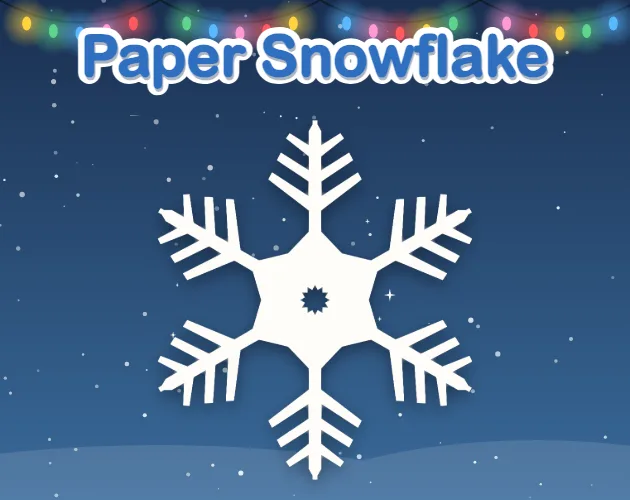 Image: yuki1019.itch.io
Use the highlighted wedge on the target card to find the matching part of the folded paper. Both display the same radial guides and arcs across the paper.
Before punching:
- Match the hole’s distance from the center using the curved guides.
- Match its position between the two fold edges using the radial guides.
- Check the whole preview circle against nearby edges and existing cuts.
A circle fully inside the wedge repeats around the unfolded snowflake. A circle crossing a fold mirrors across that fold, changing how the opening looks. Position the center carefully instead of assuming every punch will produce separate circular holes.
Use scissors for angular openings. An interior diamond calls for a closed polygon; the punch always removes a circle. To draw that polygon, toggle punch mode off, place its corners, and close the outline.
Punch Limits, Undo, and the Level 6 Introduction
Level 6 introduces the punch during the level sequence. It combines an outer contour cut with two circular holes.
| Level 6 resource | Starting allowance | Target uses |
|---|---|---|
| Snips | 2 | 1 polygon cut |
| Punches | 3 | 2 round holes |
Snips and punches have separate counters. Completing a polygon uses a snip; placing a circle uses a punch. In levels containing round holes, the starting punch allowance equals the target’s hole count plus one.
Treat that extra punch as room for correction. Every added opening changes the paper being compared with the target; extra holes do not earn a separate bonus.
Press Z immediately after a misplaced punch to remove it and recover the punch. Undo works backward through completed actions. If you have started drawing a polygon, it removes the unfinished points first.
Inspect the target before your first click on the working canvas—the level timer starts with that interaction. Before unfolding, correct misplaced holes and compare the remaining paper with the card. Unfold submits the snowflake, so it is not a temporary preview you can close to continue editing.
Practice Without Limits in Free Cut
Clear level 3 to unlock Free Cut, where the punch is available alongside unlimited snips and punches. There is no target card or timer.
Practice placing circles inside the paper, beside a fold, and across a fold to see how reflection changes the finished openings. Select Unfold when the design is ready; your snowflake is added to the Snowflake Window.
After unfolding, choose Save image to export your design or New paper to start another. The window keeps your 12 most recent Free Cut snowflakes, and you can select a saved flake there to open its image-saving option.
Something wrong or out of date on this page? How to report a correction
Continue with
 Paper Snowflake Place Points: Controls and Cutting TipsLearn Paper Snowflake place points controls, close shapes, undo cuts, and use the hole punch. Follow the fold guides to match target with fewer mistakes.
More in Controls
Paper Snowflake Close Shape: Click and Enter Controls
Master Paper Snowflake close shape controls: click the first point or press Enter to cut, undo mistakes, and use fold guides to match the target precisely.
Paper Snowflake Controls Guide: Cut, Undo, and Unfold
Paper Snowflake controls guide covering mouse, touch, and keyboard shortcuts. Learn to close cuts, undo mistakes, punch holes, and unfold your snowflakes.
Paper Snowflake Undo Cut: Fix Mistakes and Save Snips
Learn Paper Snowflake undo cut controls: remove misplaced points, recover snips and punches, and know when unfolding ends your chance to fix a mistake.
Paper Snowflake Unfold Paper: Controls and Cutting Tips
Paper Snowflake unfold paper controls explained: press Space or tap Unfold, finish cuts, undo mistakes, and learn when to reveal your finished snowflake.
Join the community
Official channels for news, updates and player help: