Paper Snowflake Snowflake Window: Unlock & Save Guide
Fill your Paper Snowflake snowflake window: unlock Free Cut, keep your favorite designs, and save snowflakes as images with this simple creation guide.
Jump to
How to Unlock the Snowflake Window
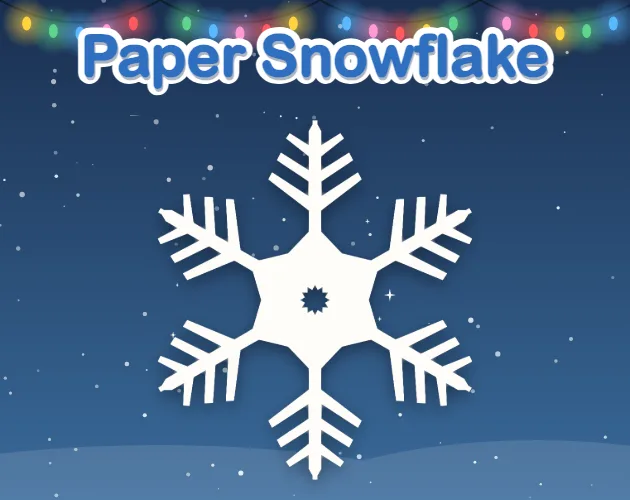
The Paper Snowflake snowflake window unlocks after you clear level 1 and displays your successful level cuts alongside your Free Cut creations. Clear level 3 to unlock Free Cut, then unfold a design to add it automatically. Select a hanging snowflake and choose Save image to export it.
Your window holds the shapes you actually cut. Successful puzzle attempts and original designs share the display, with separate counters for Level flakes and Your own.
| Feature | Unlock or requirement | What gets saved |
|---|---|---|
| Snowflake Window | Clear level 1 | Your collection of completed snowflakes |
| Level flakes | Meet a level’s required match score | One best successful design per level across 15 levels |
| Free Cut | Clear level 3 | Original designs added when you unfold |
| Free Cut collection | Create and unfold designs | Your 12 most recent creations |
Replaying a level with a better successful match replaces its saved snowflake. It does not add another copy beside it. Free Cut designs occupy separate entries, with the oldest removed when you exceed 12.
Progress saves automatically. In the window, numbered badges identify the level snowflakes, making it easy to find a puzzle design you want to inspect or export.
Official page: Paper Snowflake (yuki1019.itch.io)
Make Cuts That Match the Target
To earn a level snowflake, your unfolded paper must reach that puzzle’s required similarity score. The comparison measures the paper left behind, so both the outside silhouette and the placement of interior openings matter.
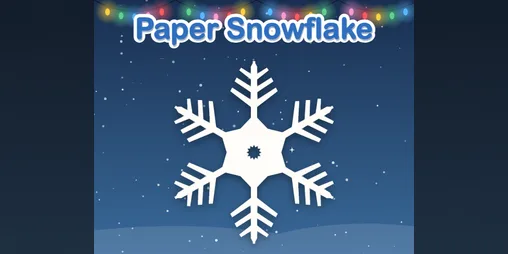 Image: yuki1019.itch.io
Study the target before placing your first point: the timer starts when you begin working on the paper. The target card highlights the wedge corresponding to your folded sheet, and both use matching guide lines.
- Map the outer edge. Compare where branches and notches meet the guide lines.
- Place points around the area to remove. Click or tap back on your starting point to complete the cut.
- Add interior details. Cut enclosed shapes for openings, or use Punch when available for circular holes.
- Unfold before time expires. Press Space or select Unfold to reveal and score the result.
The right fold follows a snowflake arm. A cut crossing that fold opens into a mirrored diamond, while a hole inside the wedge repeats around the unfolded design. Position those details against the guides rather than judging their placement from the whole snowflake alone.
Puzzle attempts limit snips and, where available, punches. Undo restores the allowance for the completed cut or punch you remove. While drawing an unfinished shape, Undo removes its latest point instead.
Useful desktop controls:
- Enter: Complete a shape after placing at least three points.
- Z: Undo.
- P: Toggle the hole punch when available.
- Space: Unfold.
- Esc or right-click: Cancel an unfinished shape.
On touchscreens, tap points and use the Undo, Punch, and Unfold buttons.
Create Original Designs in Free Cut
After clearing level 3, select Free Cut to work without a target, timer, or limits on snips and punches. The Fold button switches between the 6 arms and 4 arms options.
Try a simple silhouette before adding smaller details. Cut a notch across a fold to explore mirrored openings, then punch an interior circle to see how its position changes the repeated pattern. Use the guide arcs to keep details at deliberate distances from the center.
Once you have made a cut or punch, select Unfold. Your creation joins the window automatically. The finished screen offers Save image, New paper, and Window, so you can export it immediately or start another sheet.
Save an image of a design you want to keep before making enough new creations to push it out of the 12-entry collection.
Save a Snowflake as an Image
Open Window, then click or tap a hanging snowflake. Its preview includes Save image and Close. Level designs also show their match percentage, letting you check the score attached to that saved cut.
The image export is a 1080 × 1080 PNG with your snowflake glowing against a snowy blue background. It includes a label and the game’s name.
On supported touch devices, saving can open the device’s file-sharing sheet. Otherwise, the image downloads as snowflake.png. Export individual designs from their previews to keep copies beyond the window’s Free Cut collection limit.
Something wrong or out of date on this page? How to report a correction
Continue with
 Paper Snowflake Free Cut: Unlock, Create, and SavePaper Snowflake free cut unlocks after level 3. Learn the controls, switch folds, create custom designs, and save your own snowflakes as images to share.
More in Creation
See all Creation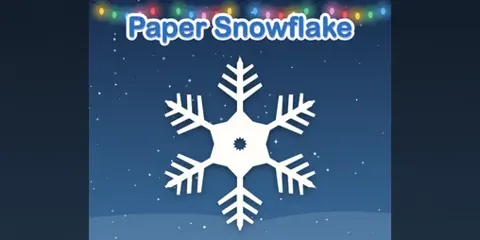
Join the community
Official channels for news, updates and player help: