Paper Snowflake Save Images: Export Your Creations
Paper Snowflake save images guide: unlock Free Cut, export 1080 × 1080 PNGs, and save your favorite level designs from the Snowflake Window on your device.
Jump to
How to Save a Snowflake Image
Keep your finished designs with the Paper Snowflake save images feature: unfold a Free Cut creation, then choose Save image. For a completed level, open the Snowflake Window, select its flake, and choose Save image. Both routes export a 1080 × 1080 PNG.
| Save route | Unlock requirement | Where to select Save image |
|---|---|---|
| Snowflake Window | Clear level 1 | Select a hanging snowflake to open its preview |
| Free Cut | Clear level 3 | Finish cutting and select Unfold; the export button appears afterward |
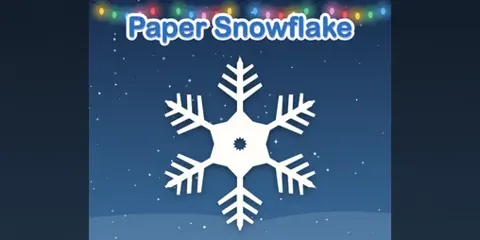
The exported picture is a finished square card. Your snowflake appears against a blue night-sky background with scattered snow and a soft blue glow. The bottom includes its label and the game’s name. Free Cut creations use My snowflake, while level creations use their level label.
Official page: Paper Snowflake (yuki1019.itch.io)
Create and Export a Free Cut Design
Free Cut removes the target card, timer, and limits on snips and punches. Once you clear level 3, use it to make a design without having to reach a matching percentage.
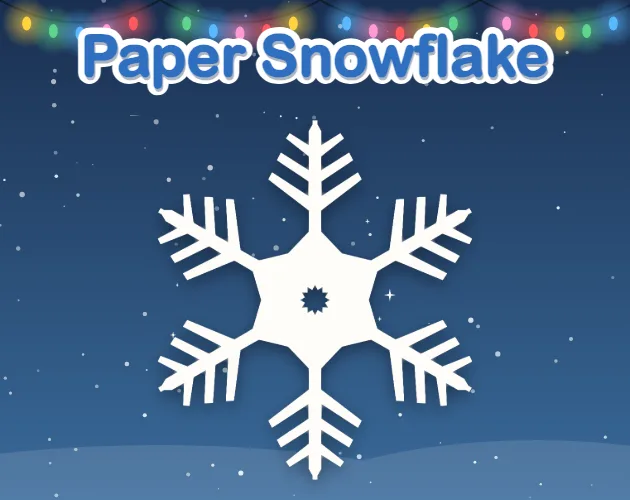 Image: yuki1019.itch.io
- Open Free Cut. Use its mode entry or the Free Cut button inside the Snowflake Window.
- Choose your fold pattern. Select Fold to switch between the available patterns before cutting.
- Outline a cut. Click or tap points around the piece you want to remove, then select the first point again to close the shape. On a keyboard, Enter also completes a cut.
- Add holes or correct a mistake. Select Punch, or press P, for circular holes. Use Undo or Z to remove the latest point or undo a completed cut.
- Select Unfold. Space also unfolds the paper. Your creation is automatically added to the Snowflake Window.
- Wait for the reveal, then select Save image. The finished-design controls also include New paper and Window.
Finish your adjustments before unfolding: that action ends the cutting stage for the current sheet.
For a diamond-shaped opening, cut across the right fold. For repeating interior openings, cut a closed shape inside the paper. Use the punch when you want round holes instead of a polygon.
Save on Desktop or Touch Devices
On desktop, Save image starts a PNG download named snowflake.png. Check your browser’s downloads to find the exported card.
On a touch device that supports sharing image files, the same button opens the device’s share sheet. Choose an available save or share destination there to keep the image. When supported file sharing is unavailable, the game uses the download route instead.
The export button follows the same process whether you use it immediately after Free Cut or from a snowflake’s Window preview.
Rename downloaded pictures to distinguish your designs, since the game requests the same filename for every export. Keep the PNG format when you want to preserve the original image.
Manage Your Snowflake Window Collection
The Snowflake Window stores your actual cuts. Clear a level to hang its snowflake, then select that decoration whenever you want to export it.
Each level keeps one saved design: your highest-scoring successful attempt. A later clear replaces it when the new score equals or exceeds the stored score. Export a version you want to keep before replaying that level.
Free Cut has a separate collection limit of 12 creations, displayed newest first. Adding another creation beyond that limit removes the oldest Free Cut entry. Save favorites as PNGs before making more designs if you want to keep those older versions.
Progress saves automatically, but adding a flake to the Window and exporting an image are separate actions. Use Save image for every design you want as a picture on your device.
Something wrong or out of date on this page? How to report a correction
Continue with
 Paper Snowflake Snowflake Window: Unlock & Save GuideFill your Paper Snowflake snowflake window: unlock Free Cut, keep your favorite designs, and save snowflakes as images with this simple creation guide.
More in Creation
See all CreationContinue exploring
Join the community
Official channels for news, updates and player help: